

Before You Start
Make sure you have:
- Your THE BACKLOT login credentials
- The correct release title
- The final media files ready for upload
- Release cover artwork, if applicable
- Captions/subtitles, HLS folders, MPEG-DASH folders, or supporting assets, if applicable
Please keep the browser tab open until the upload is complete.
Step 1: Open New Delivery
- Sign in to THE BACKLOT.
- Go to the Deliveries area.
- Click New Delivery.
- The delivery form will open and guide you through the submission process.
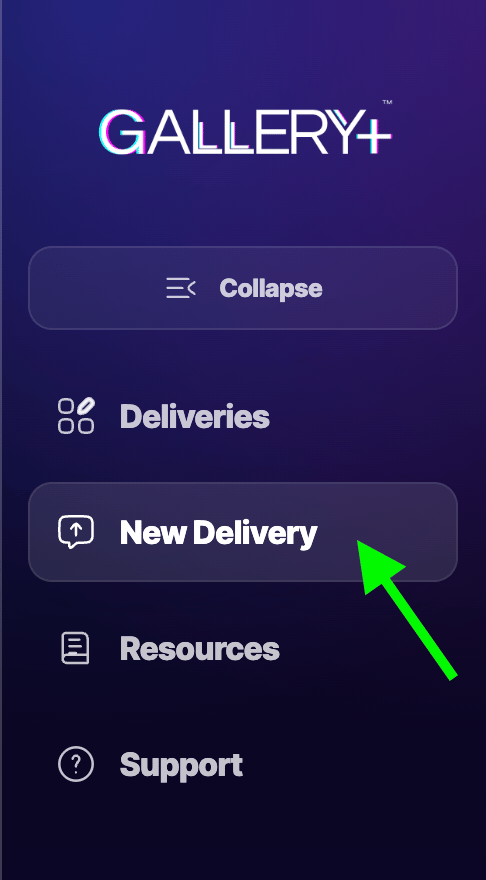
"New Delivery" button: what it looks like in the navigation menu sidebar of THE BACKLOT.
Step 2: Choose The Content Type
Select the format that best matches what you are submitting:- Album
- Movie / Film
- Series
- Individual Episode
- Trailer
- Small Asset, such as Image, GIF, or MP4
- Asset, other
Step 3: Add Delivery Metadata
Enter the basic information for the release, including:- Title
- Synopsis or description
- Genre, if applicable
- Release year
- Captions availability
- Release notes, if needed
Step 4: Video Package Format
For movie, film, series, episode, or trailer uploads, choose the video package format when requested. Common options include:- MP4
- MOV
- HLS
- MPEG-DASH
master.m3u8, resolution folders, segment files, subtitles, or thumbnails.
Step 5: Uploading Series Episodes
If you are submitting a Series, THE BACKLOT lets you organize uploads by episode.
- Add the series title.
- In the upload area, create or select an episode.
- Enter the episode number and episode title if needed.
- Upload the package/files for that episode.
- Add additional episodes as needed.
Step 6: Upload Files Or Folders
In the upload step, you can upload the required files for the delivery. Depending on the delivery type, this may include:- Video master files
- HLS or MPEG-DASH folders
- Captions or subtitle files
- Artwork
- Thumbnails
- Supporting assets
- Documents or other required materials
Step 7: Review Your Delivery
Before submitting, confirm the title, content type, episode selection, cover artwork, and attached files are correct.
- The title is correct
- The selected content type is correct
- The cover artwork looks right
- The files are attached to the correct delivery or episode
- Any notes or caption information is accurate
Step 8: Submit The Delivery
Once everything is ready, submit the delivery. After submission:- Producers may need GALLERY+ approval before file links become available.
- Admin accounts may receive delivery links immediately.
- You can return to your dashboard to track the delivery status.
Delivery Statuses
Your delivery may show one of several statuses:- Pending Approval: The delivery was submitted and is waiting for review.
- Approved / Processing: The delivery has been approved and is being handled.
- Completed: The delivery has finished review or processing.
- Archived: The delivery was moved out of the active dashboard view.
- Review your submitted delivery
- Copy available file links once approved
- Archive the delivery from your own dashboard
- Request deletion if the delivery has already been accepted
- Cancel or remove certain pending submissions if allowed
File links may only become available after GALLERY+ approves the delivery.
Important Notes
- Do not close the browser tab while files are uploading.
- Do not refresh the page during an active upload.
If a delivery was submitted by mistake and has already been accepted, submit a deletion request instead of trying to remove it directly.